To ensure the smooth functioning of the biometric device and your Fedena instance Biometric Plugin has to be enabled,Then Admin has to follow the below steps first.
Step 1:
Kindly download and extract the application using the link below:
https://rfid.fedena.com/SISAccess.tar.gz
Kindly download and extract the application using the link below:
https://rfid.fedena.com/SISAccess.tar.gz
Step 2:
Once extracted, the application will be installed on your desktop.
Once extracted, the application will be installed on your desktop.
Step 3:
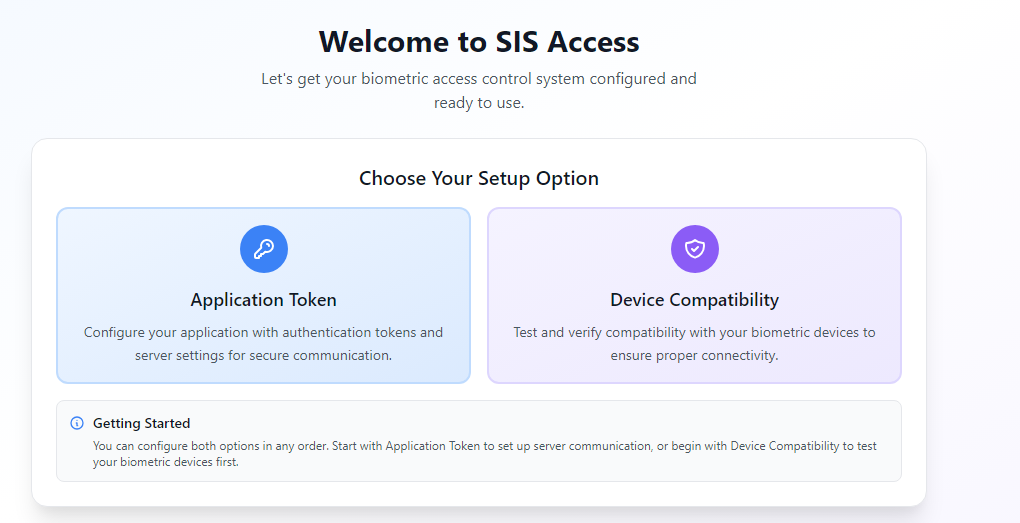
Open the application. You will see the main screen—please click on Device Compatibility.
Open the application. You will see the main screen—please click on Device Compatibility.
Step 4:
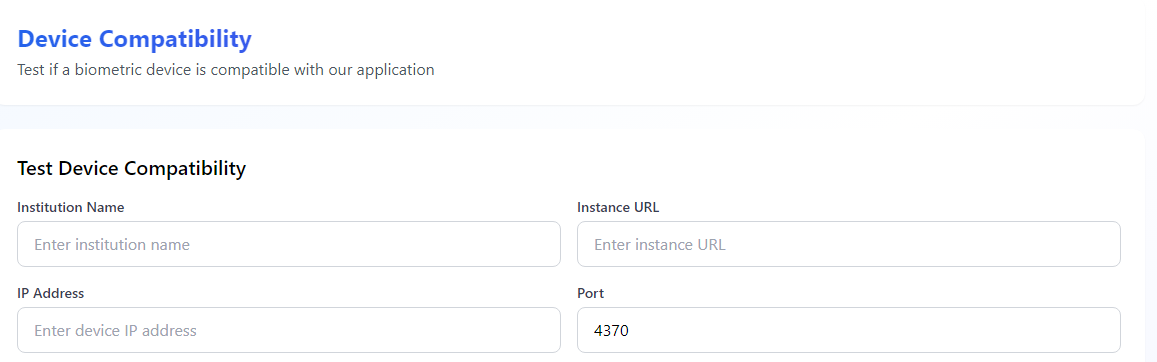
Enter the following details and click on Test Compatibility:
Enter the following details and click on Test Compatibility:
- Institution Name
- Instance URL (Fedena URL): https://abc.fedena.com/
- IP Address
- Port Number
Step 5:
Once the compatibility test is successful, kindly share the screenshot of the success screen with support Or Training team.
Once the compatibility test is successful, kindly share the screenshot of the success screen with support Or Training team.
After receiving the screenshot, we will proceed further with the integration.
NOTE :
All biometric IDs registered on the device must be entered in the Biometric ID field under the respective student and employee profiles in Fedena.
Before configuring the biometric device, ensure that the required Leave Types have been configured for all employees.
Was this article helpful?
That’s Great!
Thank you for your feedback
Sorry! We couldn't be helpful
Thank you for your feedback
Feedback sent
We appreciate your effort and will try to fix the article