1. Overview
Fedena provides an option to integrate external applications with the system through the Manage Apps feature. This allows institutions to add and access external applications directly from their Fedena account.
Depending on the application URL and configuration, an application can open either:
Within the Fedena interface .
In a separate browser tab.
For applications that require secure authentication or integration with the Fedena, OAuth client configuration may also be required.
This documentation explains how to add applications in Fedena, understand the application access options, and identify the purpose of OAuth client configuration.
2. Purpose of Managing Applications in Fedena
The Manage Apps feature helps institutions:
Integrate external applications with Fedena.
Provide users with access to third-party applications from a single platform.
Simplify navigation between Fedena and connected applications.
Control how integrated applications are opened.
Make frequently used external tools accessible through the Fedena dashboard.
3. How to Add an Application in Fedena
Follow the steps below to add an external application.
Log in to your Fedena account using administrator credentials.
Navigate to the Module Access icon.
Select Administartion > Settings > Manage Clients.
Click New.
Click New to add a new application.
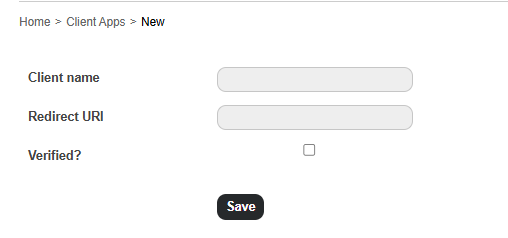
Enter the required application details, such as the application name and URL.
Select the check box.
Save the configuration.
4. Application Opening Options
Fedena supports different application-opening behaviours depending on whether the application URL uses HTTPS or HTTP.
4.1 Secure Application (HTTPS)
When adding an application with a secure HTTPS URL, you can choose how the application should open:
Within Fedena: The application opens inside the Fedena interface using an embedded frame, provided the external application permits embedding.
In a New Tab: The application opens separately in a new browser tab.
4.2 Insecure Application (HTTP)
When adding an application using an HTTP URL:
Fedena displays a notification indicating that the application is not using a secure connection.
The application opens in a new browser tab by default.
It does not open within the Fedena embedded frame.
5. Identifying Applications That Open in a New Tab
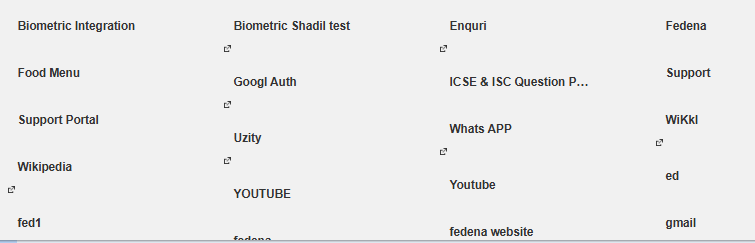
Applications configured to open in a separate browser tab can be identified by the icon displayed beside the application name.
6. OAuth Client Configuration
OAuth is an authorisation framework that allows applications to communicate securely and obtain authorised access to resources.
In the Fedena , an OAuth client configuration may be used to register an application and manage its authentication or integration settings.
The configuration contains the following details:
Sl. No. | Field | Purpose | Why Is It Required? |
|---|---|---|---|
1 | Name | Identifies the application requesting access. | Helps administrators identify which application is associated with the integration. |
2 | Client ID | A unique identifier assigned to the registered application. | Identifies the application during the authentication process. |
3 | Client Secret | A confidential authentication credential associated with the Client ID. | Helps authenticate the application when required by the OAuth flow. |
4 | Redirect URI | Specifies the URL to which the user is redirected after authentication. | Ensures that the authentication response is sent to an approved destination. |
5 | Verified | Indicates whether the application is marked as verified in the portal. | Helps administrators identify the verification status of the application configuration. |
7. How Does OAuth Authentication Work?
The general authentication process follows these steps:
Step 1: User accesses the application
The user opens the Fedena Website or an integrated application.
Step 2: Authentication request
The application identifies itself using the registered Client ID.
Step 3: Authentication verification
The authentication server validates the request and the required credentials.
Step 4: Redirect to the configured URI
After successful authentication, the user is redirected to the approved destination with the appropriate authentication response.
8. Why Is OAuth Configuration Important?
OAuth client configuration helps with:
Application Identification: Identifies the application requesting authentication.
Secure Authentication: Helps verify that the authentication request comes from a registered application.
Redirect URI Validation: Ensures that authentication responses are sent to an authorised URL.
Integration Management: Allows administrators to manage registered applications and their authentication settings.
Access Control: Supports controlled authorisation between connected applications.
Was this article helpful?
That’s Great!
Thank you for your feedback
Sorry! We couldn't be helpful
Thank you for your feedback
Feedback sent
We appreciate your effort and will try to fix the article