Now go to menu > administartion > biommetric >
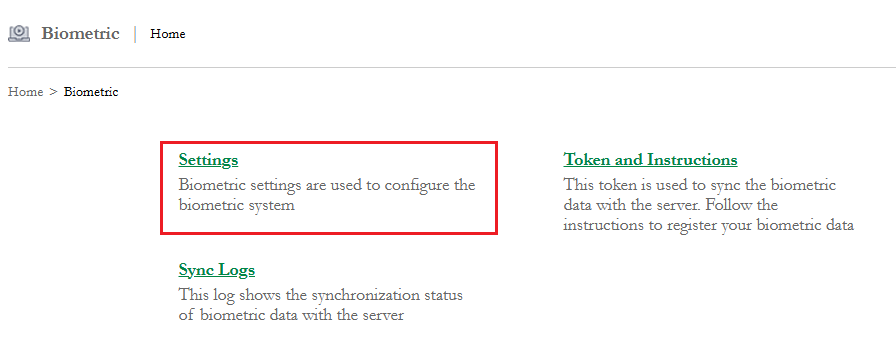
Step-1 -Settings
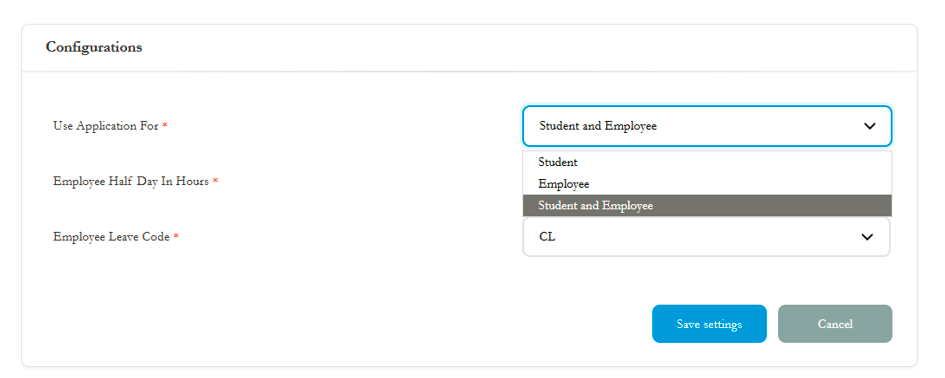
In Fedena, under Biometric Settings, the Use Application For option determines which users the biometric attendance configuration applies to.
The available options mean:
Student: The biometric settings apply only to students. Their attendance is recorded through the biometric system.
Employee: The biometric settings apply only to employees, such as teaching and non-teaching staff.
Student and Employee: The biometric settings apply to both students and employees.
Employee Half Day in Hours: Defines the working-hour threshold used to determine a half-day for employees, depending on the system's attendance rules.
Employee Leave Code: Selects the leave code, such as CL (Casual Leave), used in the relevant employee attendance or leave process.
Thank Click On Save Settings.
Step-2-Token and Instructions
This token is used to sync the biometric data with the server. Follow the instructions to register your biometric data.
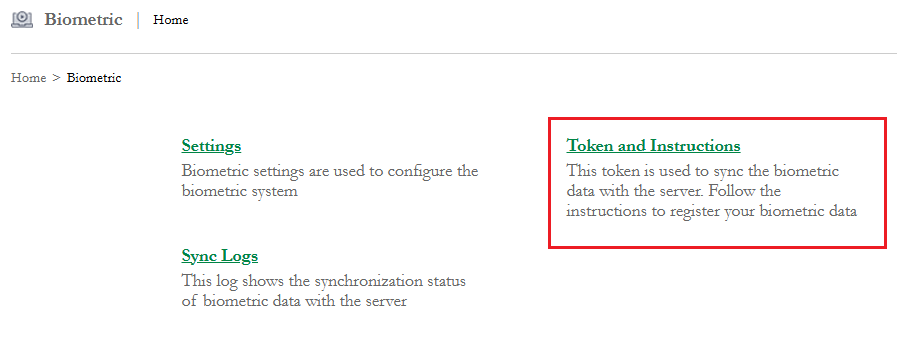
Once you click on Token and Instructions, a new window will open displaying a unique Token Number and a set of instructions that must be followed to proceed with the next steps.

Step - 3 -SIS Access Application Setup Instructions
- Download & Install: Download the SIS Access application from here and install it on the computer connected to your biometric device(s).
- Network Configuration: Ensure that both the biometric device and the computer with the SIS application are connected to the same local network.
- Token Setup: Copy the token displayed on this page and paste it into the SIS application when prompted.
- Login Credentials:Use the default credentials for first-time login:
- Username: sisadmin
- Password: sisadmin123
Step-4 - After SIS Access Application opens -Add New Device
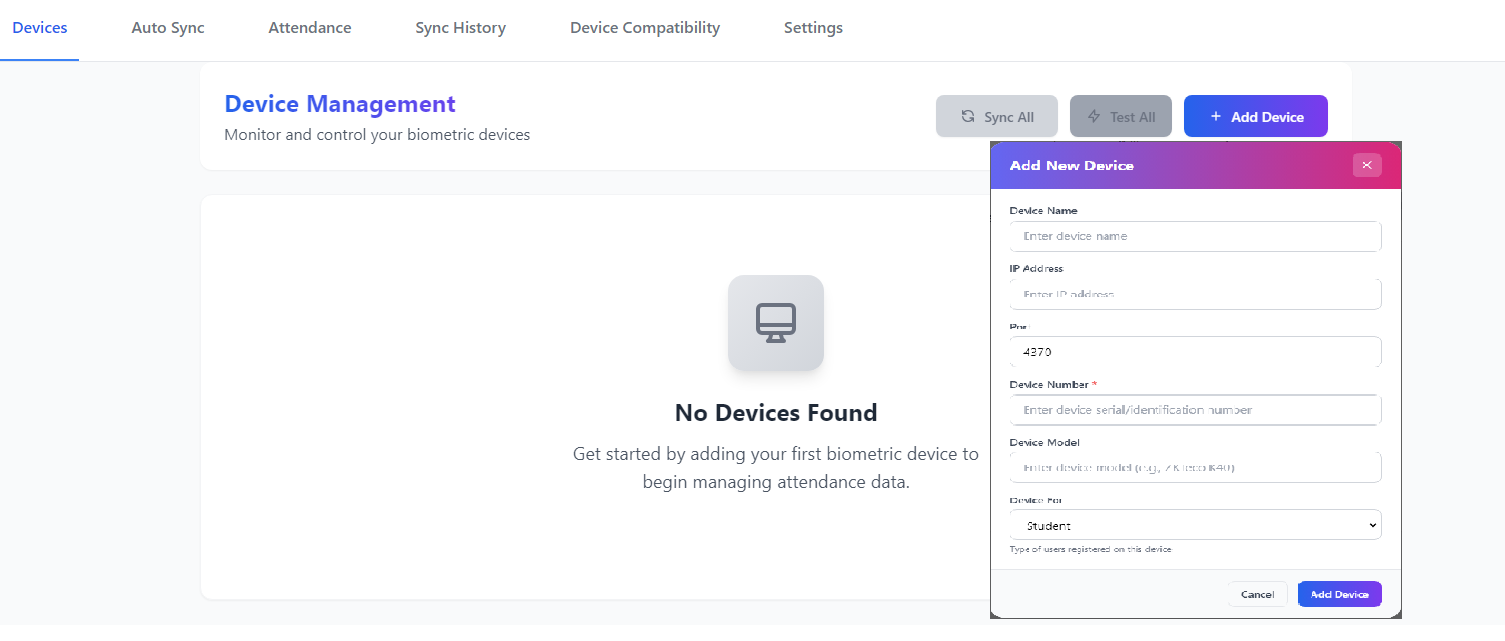
This window in Fedena is used to register a biometric attendance device by entering its device details and specifying whether it is used for students or employees.
1. Device Name: Enter a name to identify the biometric device, such as Main Gate Biometric Device.
2. IP Address: Enter the IP address assigned to the biometric device so that it can be identified on the network.
3. Port: Enter the communication port used by the device. The default port displayed is 4370. Change it only if your device uses a different port.
4. Device Number: Enter the device's unique serial number or identification number. This is a mandatory field.
5. Device Model: Enter the biometric device model, such as ZKTeco K40, to identify the hardware being configured.
6. Device For: Select the type of users registered on the device:
Student: If the device is used to record student attendance.
Employee: If the device is used to record employee attendance.
7.After entering the required details, click Add Device to register the device in Fedena. Ensure that the IP address, port, and device identification number match the actual device configuration.
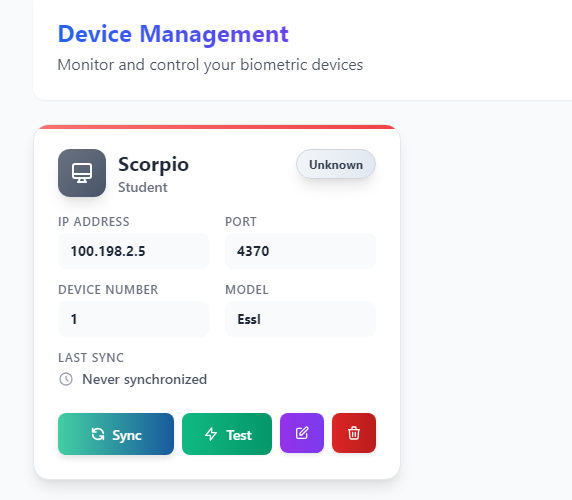
Step-5 -Auto Sync Settings in Fedena
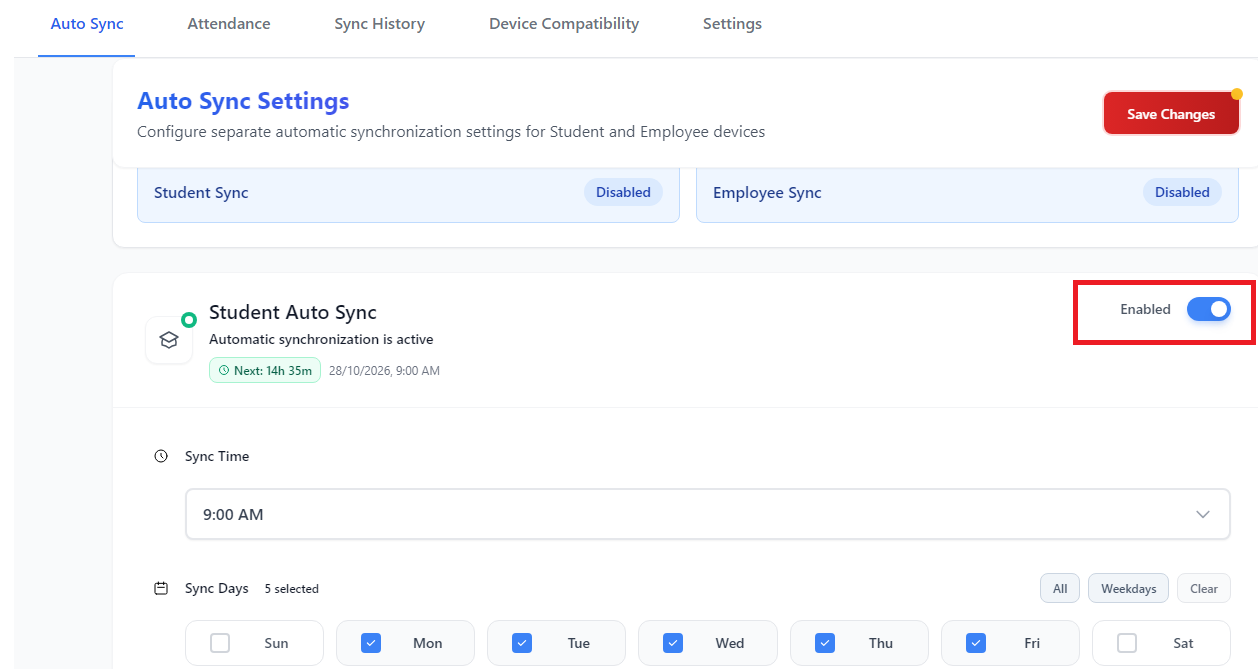
The Auto Sync screen in Fedena is used to configure automatic synchronization of attendance data between biometric devices and Fedena for students and employees.
1. Student Auto Sync: Enable this option to schedule automatic synchronization of student attendance data from the selected biometric devices.
2. Employee Auto Sync: Allows you to configure automatic synchronization separately for employee attendance.
3. Sync Time: Select the time at which the automatic synchronization should run. In the screenshot, it is set to 9:00 AM.
4. Sync Days: Select the days on which synchronization should take place. In the screenshot, Monday to Friday are selected, while Saturday and Sunday are not selected.
5. Select Devices: Choose the biometric devices whose attendance data should be synchronized automatically. The screenshot shows one selected device, Scorpio, with IP address 100.198.2.5.
6. Enable/Disable Auto Sync: Use the toggle to activate or deactivate automatic synchronization for the relevant user category.
7. Save Changes: After configuring the synchronization time, days, and devices, click Save Changes to apply the settings.
Note : If Its Disable we can sync the logs Manually also under the device where Sync option
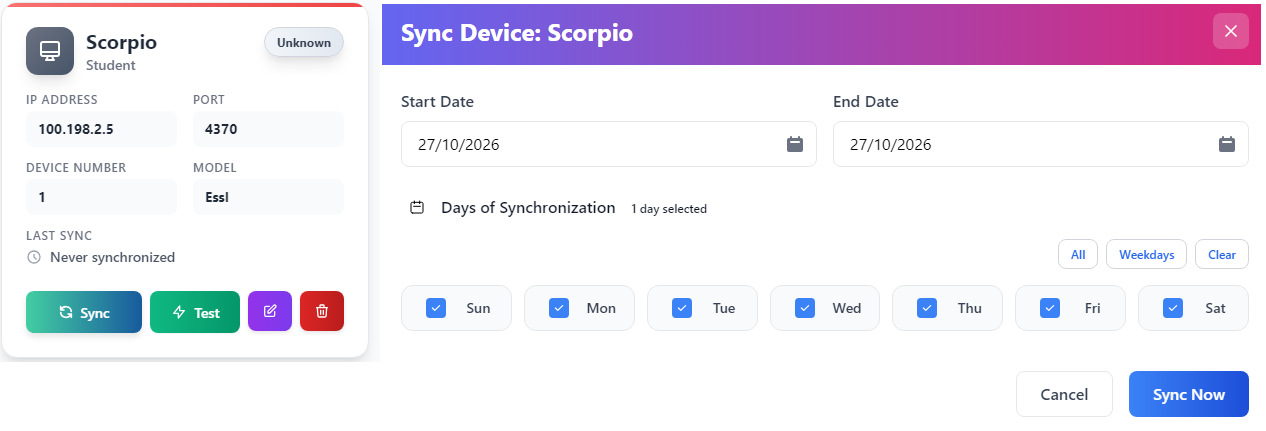
Once all the above 5 steps have been completed, you can view the Attendance Report and Sync Report in SIS Access Application , as shown in the screenshot below, to verify the attendance records and synchronization status.
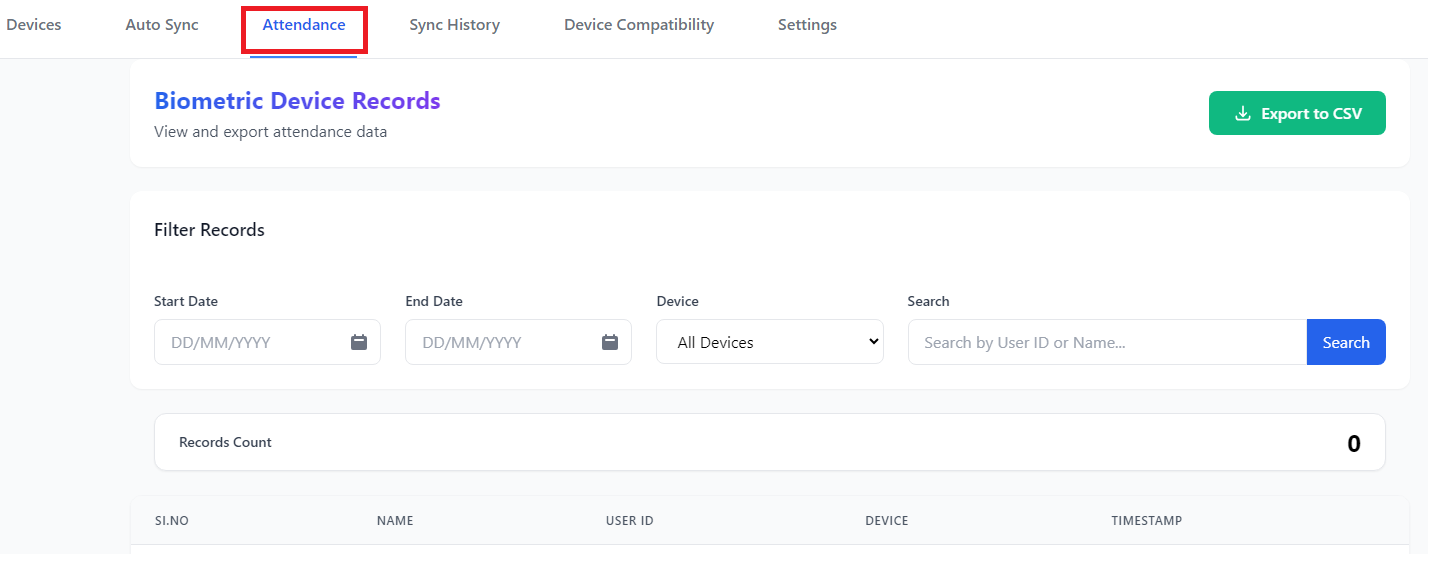
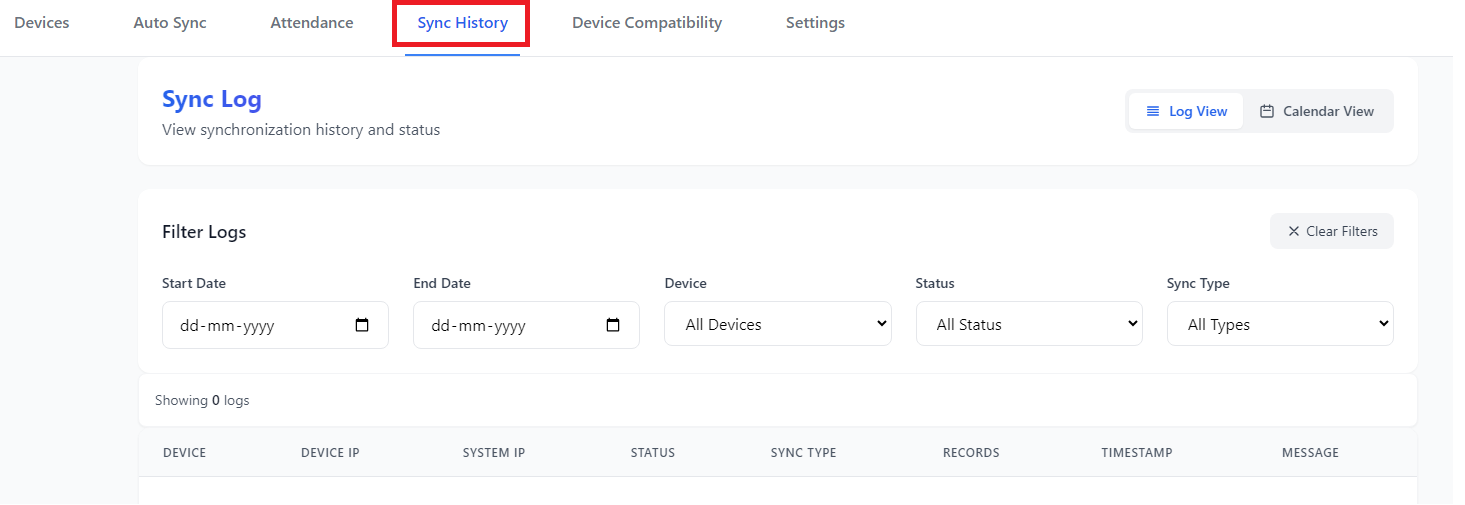
Step - 6 SYNC LOGS
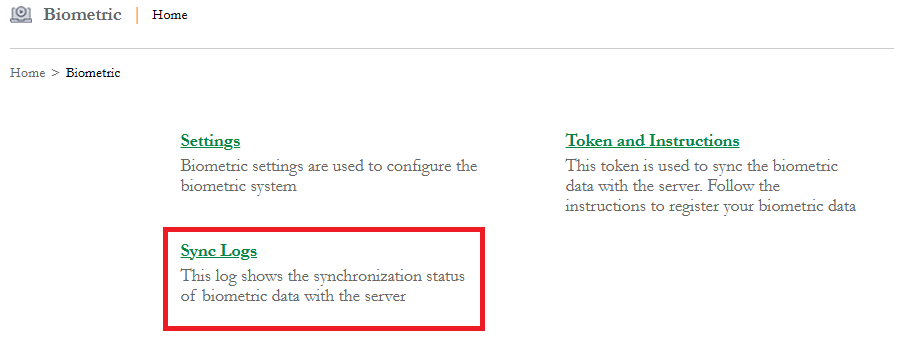
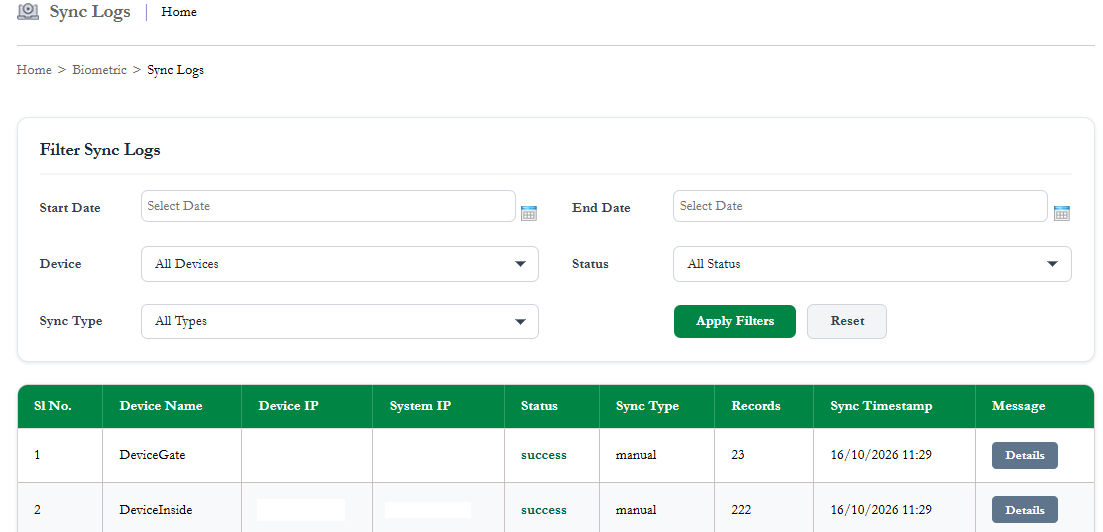
The sync logs are displayed under the Sync Logs section in Fedena, where you can review the synchronization history and check the status of attendance data synced from the biometric devices.
Was this article helpful?
That’s Great!
Thank you for your feedback
Sorry! We couldn't be helpful
Thank you for your feedback
Feedback sent
We appreciate your effort and will try to fix the article