Add Normal subjects to a batch:
To add a normal subject to a batch, you must either be the administrator or a privileged employee (Batch or Subject master privilege must be is provided). A normal subject is a mandatory subject that must be completed in order to meet the requirements of a course. Normal subjects are applicable to all students in the batch.
If you are not importing subjects from the previous batch, you will have to add new subjects for the batch. You can add normal subjects using the following methods.
Through the Manage Course or Manage Batch page-
At the top of your dashboard, click the Menu > Administration > Settings > Manage Batch > Double Click on the batch to open the subject center page.
Select the Course. All batches of the selected course are displayed.
Select the batch.
In the top right, click Manage > Subject to open the Assign Subject page as depicted in figure Fig1.
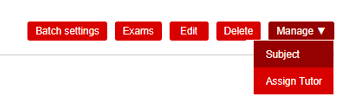
Fig 1.
Click the subject > it will be directed to Page as shown in Fig 2.
 Fig 2.
Now Click on Subjects Center button > Course Subjects > Select Course >

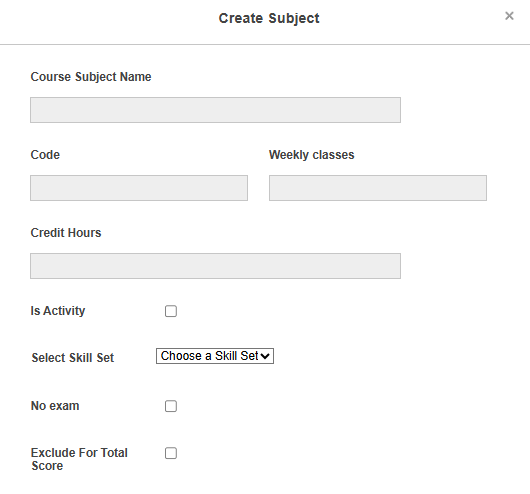 Fig 3.
In the Name field, enter the subject name.
In the Code field, enter the subject code.
In the Max weekly classes field, enter the maximum number of classes that the subject can be taught in a week.
In the Credit Hours field, enter the number of credit hours for the subject.
Note: This field is available only when the grading system for the course is GPA or CWA.
Select Is Activity- if the subject is co-scholastic and you want only grades to appear on the report card.
Select skill set- if the subjecthas skill based exams.
Select the No exam checkbox if no exams will be conducted for the subject.
Exclude for Total Score – Enable this option to exclude the subject’s marks from the main subject total and display them separately after the grand total in the report card.
Click the Create subject button.
Edit Normal subjects to a batch:
Normal subject added once can be edited through the Subjects page.
At the top of your dashboard, click the module access icon > Administration > Settings > Manage Course/Batch > Manage Subject to open the Subjects page.
Select the batch. All subjects associated with the batch are displayed.
Click Edit beside the subject you want to edit.
 Fig 7.
Make the necessary changes, and then click the Update Subject button.
To delete a normal subject, you must either be the administrator or a privileged employee (Manage Course/Batch or Subject master privilege must be is provided).
The normal subject can be deleted only if the exam schedule has not been published for the subject. You can delete a normal subject through the Subjects page.
At the top of your dashboard, click the module access icon > Administration > Settings > Manage Course/Batch > Manage Subject to open the Subjects page.
Select the batch. All subjects associated with the batch are displayed.
Click Delete beside the subject you want to delete.
Fig 8.
Click DELETE to confirm.
Was this article helpful?
That’s Great!
Thank you for your feedback
Sorry! We couldn't be helpful
Thank you for your feedback
Feedback sent
We appreciate your effort and will try to fix the article