The Administrator or an employee who has been given Manage Course/Batch privileges can create multiple batches under the same Course/Class.
A Batch can represent a Section, Semester, Intake, Academic Year, or Group of Students, depending on your institution structure.
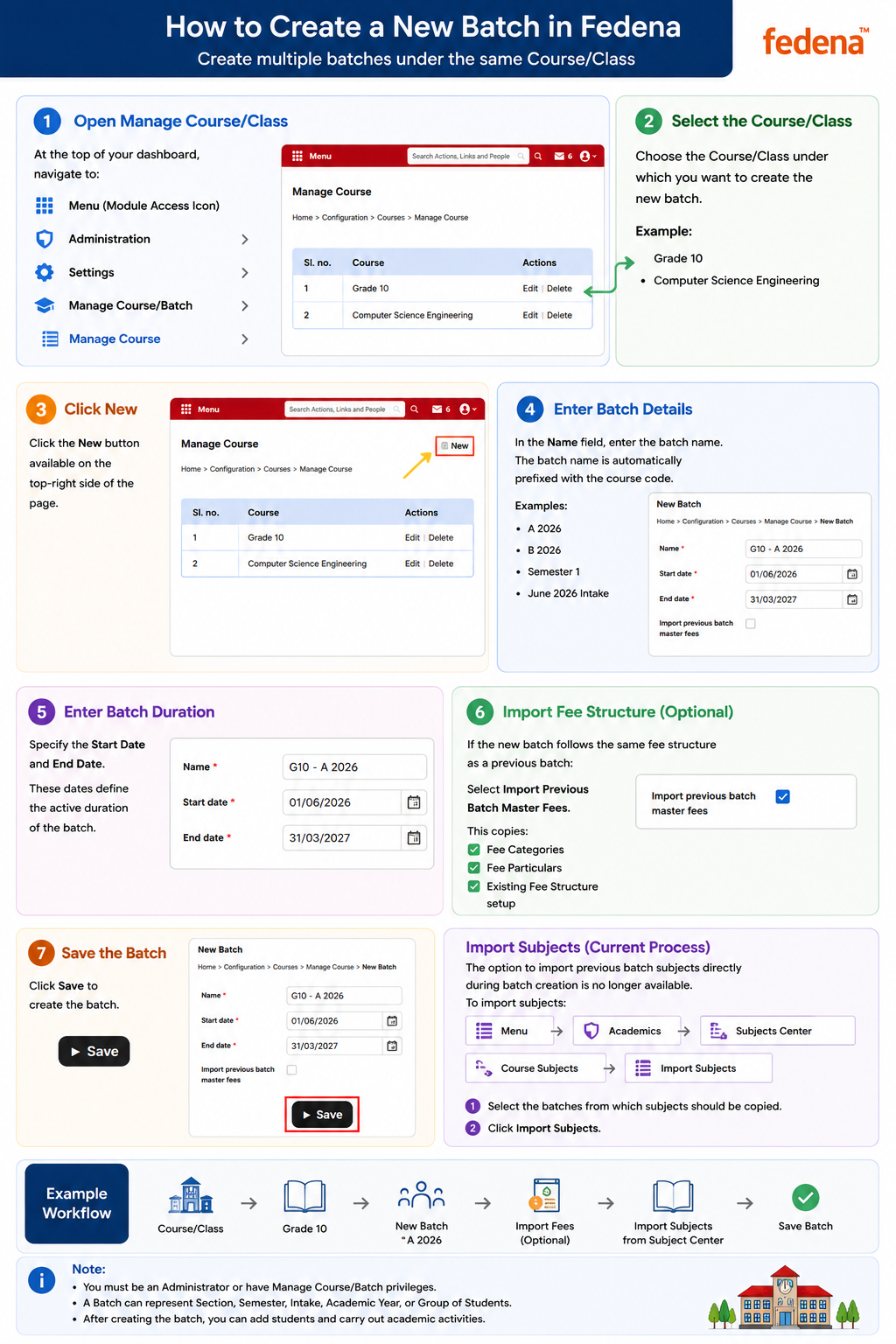
Steps to Create a New Batch
Step 1: Open Manage Course/Class
Navigate to:
Menu → Administration → Settings → Manage Course/Batch → Manage Course
This page displays all available Courses/Classes.
Step 2: Select the Course/Class
Choose the Course/Class under which you want to create the new batch.
Example:
Grade 10
or
Computer Science Engineering
Step 3: Click New
Click the New button available on the top-right side of the page.
Step 4: Enter Batch Details
Fill in the required details:
Batch Name
Enter the batch name.
Examples:
- A 2026
- B 2026
- Semester 1
- June 2026 Intake
Note:
Fedena automatically adds the Course/Class code before the batch name.
Step 5: Enter Batch Duration
Specify:
- Start Date
- End Date
These dates define the active duration of the batch.
Step 6: Import Fee Structure (Optional)
If the new batch follows the same fee structure as a previous batch:
Select:
Import Previous Batch Master Fees
- Fee Categories
- Fee Particulars
- Existing Fee Structure setup
This helps avoid creating fees again manually.
Step 7: Save the Batch
Click Save to create the batch.
Import Subjects (Current Process)
The option to import previous batch subjects directly during batch creation is no longer available.
To import subjects:
Navigate to:
Menu → Academics → Subjects Center → Course Subjects → Import Subjects
Then:
- Select the batches from which subjects should be copied
- Click Import Subjects
Example Workflow
Course/Class
↓
Grade 10
↓
New Batch → A 2026
↓
Import Fees (Optional)
↓
Import Subjects from Subject Center
↓
Save Batch
The batch is now ready for student admissions and academic activities.
Was this article helpful?
That’s Great!
Thank you for your feedback
Sorry! We couldn't be helpful
Thank you for your feedback
Feedback sent
We appreciate your effort and will try to fix the article