Managing calendars and events efficiently in Fedena ensures that everyone in the institution stays updated on important activities and schedules.
How to Access the Calendar
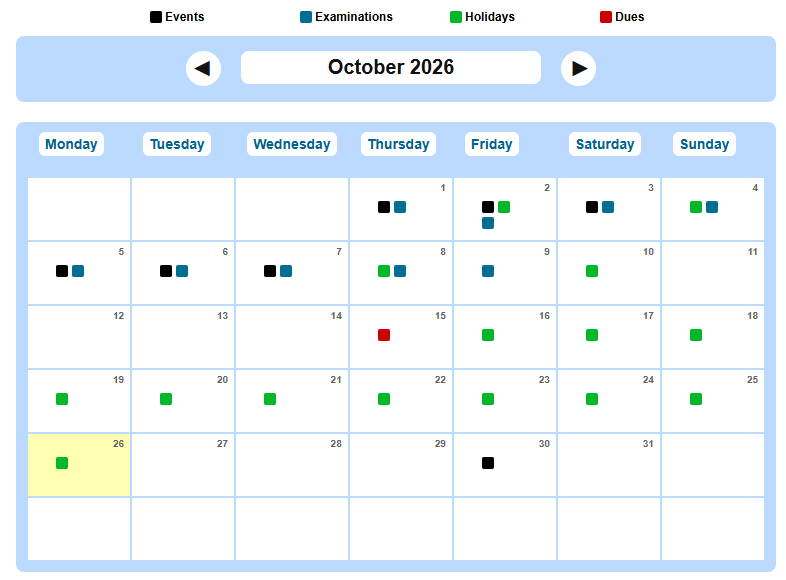
When you log into Fedena, the dashboard usually displays a calendar, or you can access it through the main navigation bar. This calendar allows you to mark and view events, exams, holidays, and more.
Menu > Academics > Calendar
How to Add Events
To add an event, follow these steps:
- Go to the calendar section.
- Click on "Create Event" or "Add Event."
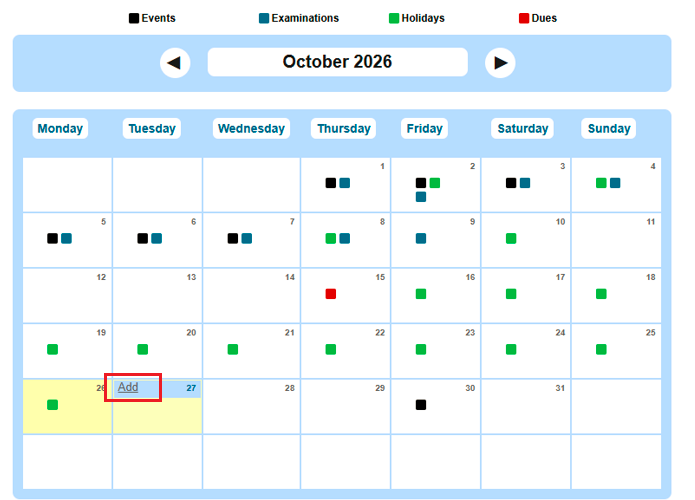
- Fill in the required details such as the event title, description, start and end dates, and time. You can also categorize the event (e.g., holidays, meetings, exams).
- After clicking "Add Event," provide the following information:
- Title: Enter the event name in the text box.
- Start and End Dates: Specify the event duration.
- Holiday: Enable this option only if the event is a holiday.
- Description: Add relevant details.
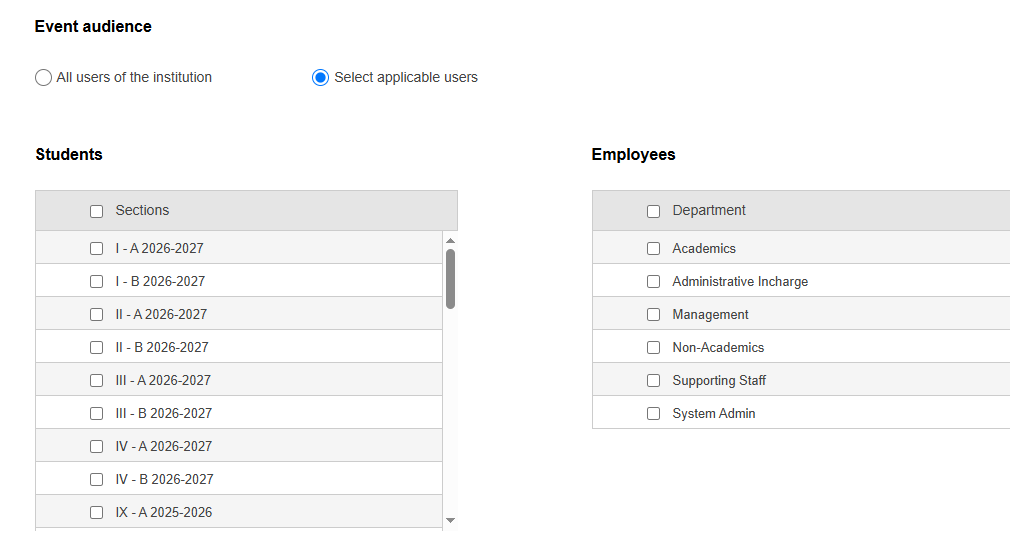
- Event Audience: Select "All users of the institution" if the event applies to all employees, students, and admins.
- Applicable Users: Choose specific users if needed.
You can also set reminders, or disable them in the reminder settings at the bottom if not required.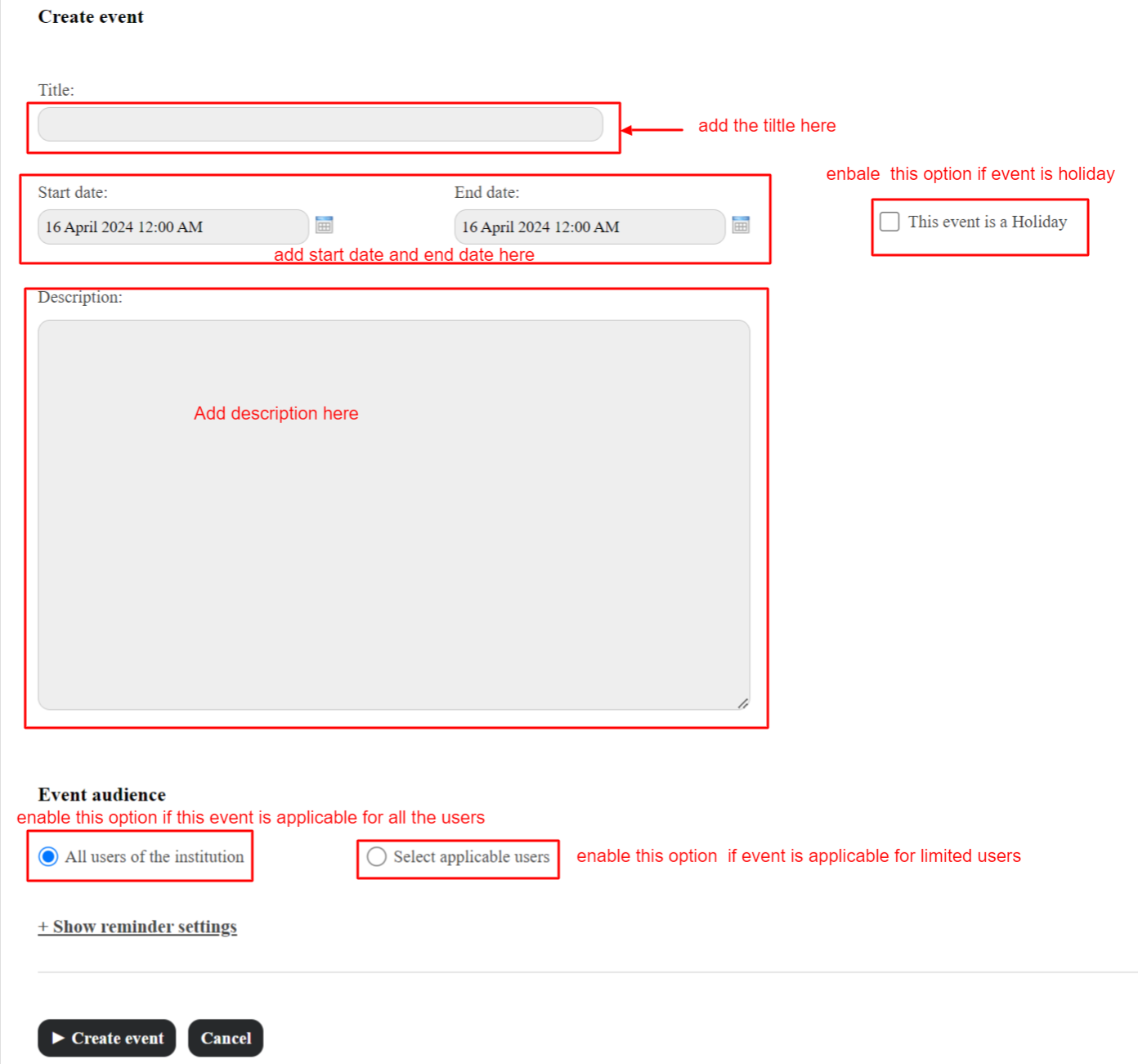
How to Edit or Delete Events
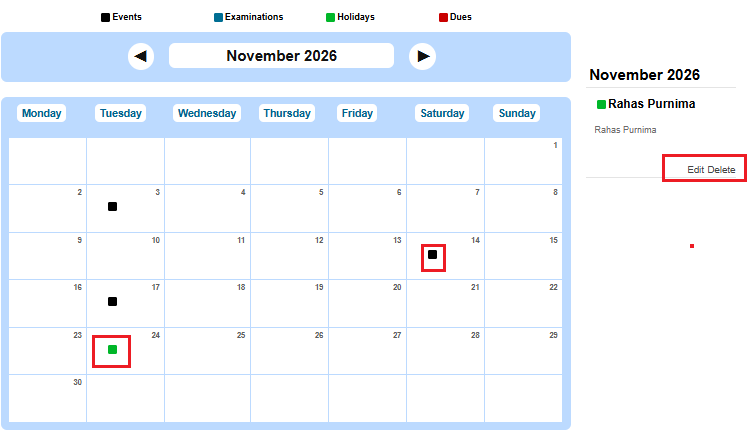
To modify or delete an event:
- Click on the event in the calendar.
- Select the option to edit or delete.
- Make the necessary changes and save, or confirm the deletion if you're removing the event.
How Are Events Displayed in the Calendar?
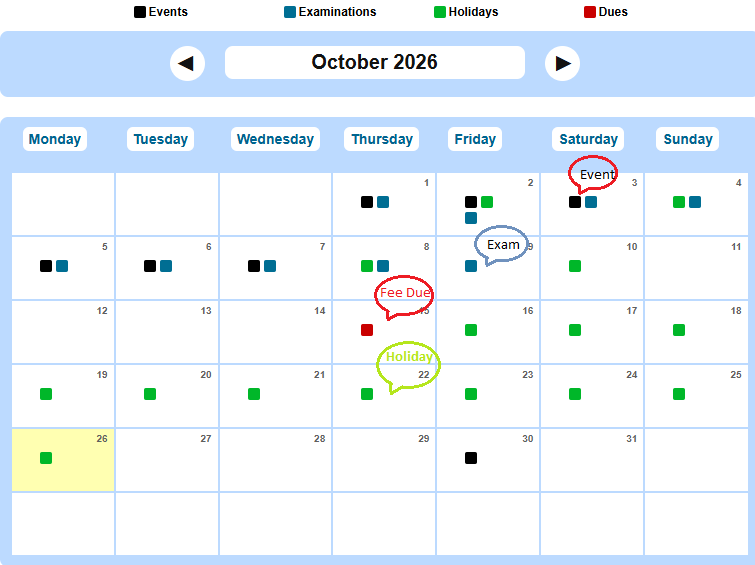
- Blue: Represents exams, which are displayed on the right side of the calendar. Exam details are fetched from the Examination and Gradebook modules.
- Green: Indicates a holiday.
- Black: Regular events.
- Red: Fees due, fetched from the Finance module.
Was this article helpful?
That’s Great!
Thank you for your feedback
Sorry! We couldn't be helpful
Thank you for your feedback
Feedback sent
We appreciate your effort and will try to fix the article