The Administrator or an employee who has been given Manage Course/Batch privileges can modify the details of a Course/Class whenever required.
Steps to Edit a Course/Class
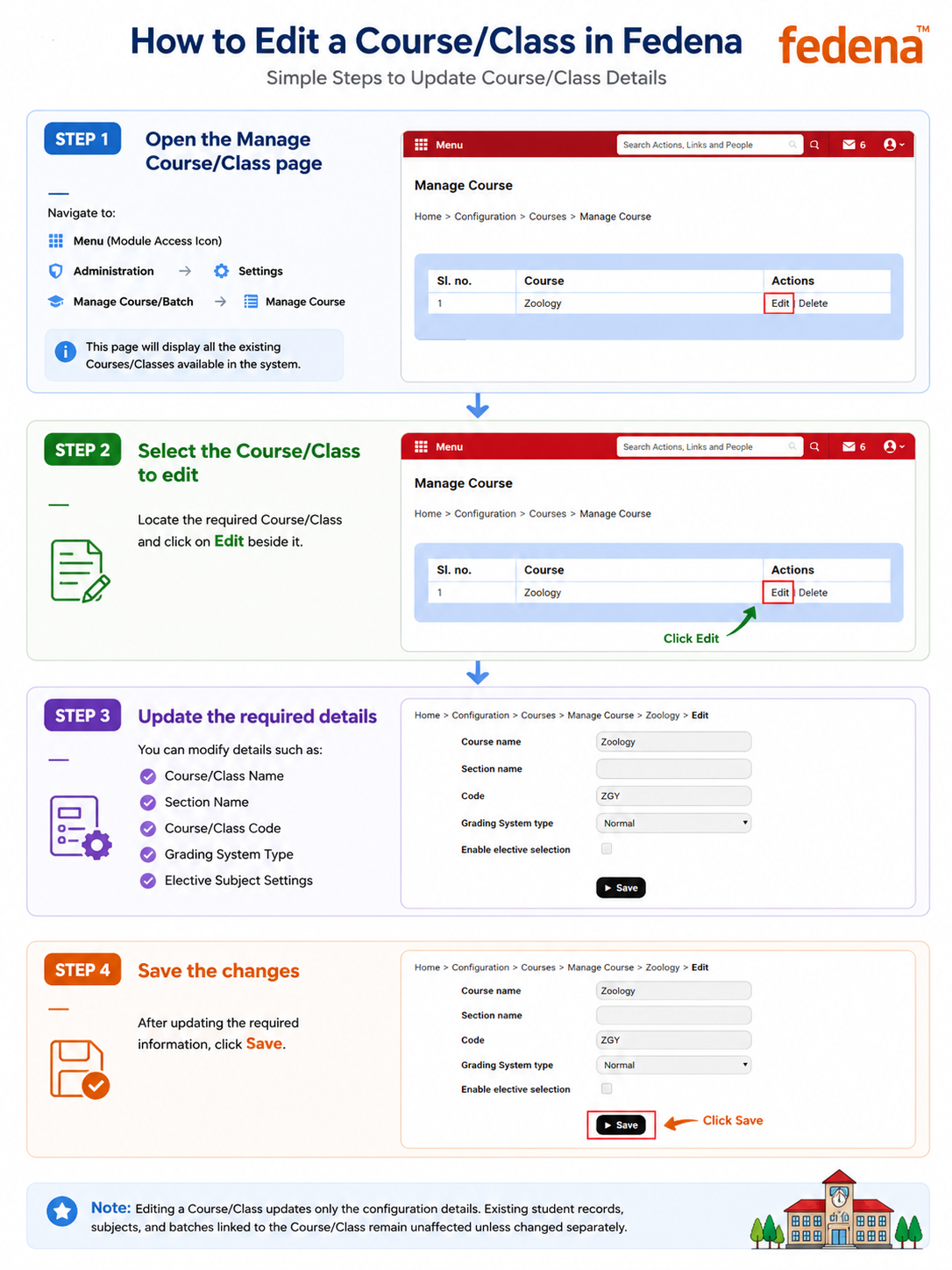
Step 1: Open the Manage Course/Class page
Navigate to:
Menu → Administration → Settings → Manage Course/Batch → Manage Course
This page will display all the existing Courses/Classes available in the system.
Step 2: Select the Course/Class to edit
Locate the required Course/Class and click on Edit beside it.
Step 3: Update the required details
You can modify details such as:
- Course/Class Name
- Section Name
- Course/Class Code
- Grading System Type
- Elective Subject Settings
Step 4: Save the changes
After updating the required information, click Save.
Was this article helpful?
That’s Great!
Thank you for your feedback
Sorry! We couldn't be helpful
Thank you for your feedback
Feedback sent
We appreciate your effort and will try to fix the article