You can customise the enquiry form based on your requirement. Add, remove or reorder the fields to your choice. The fields once added will only reflect on the newly submitted enquiry forms. The fields in the old enquiry form will remain unchanged.
Click the module access icon > Academics > Applicants > Enquiry to open the Enquiry Dashboard.
Click the Settings button at the top right corner of Enquiry index page.
Click on Form Settings
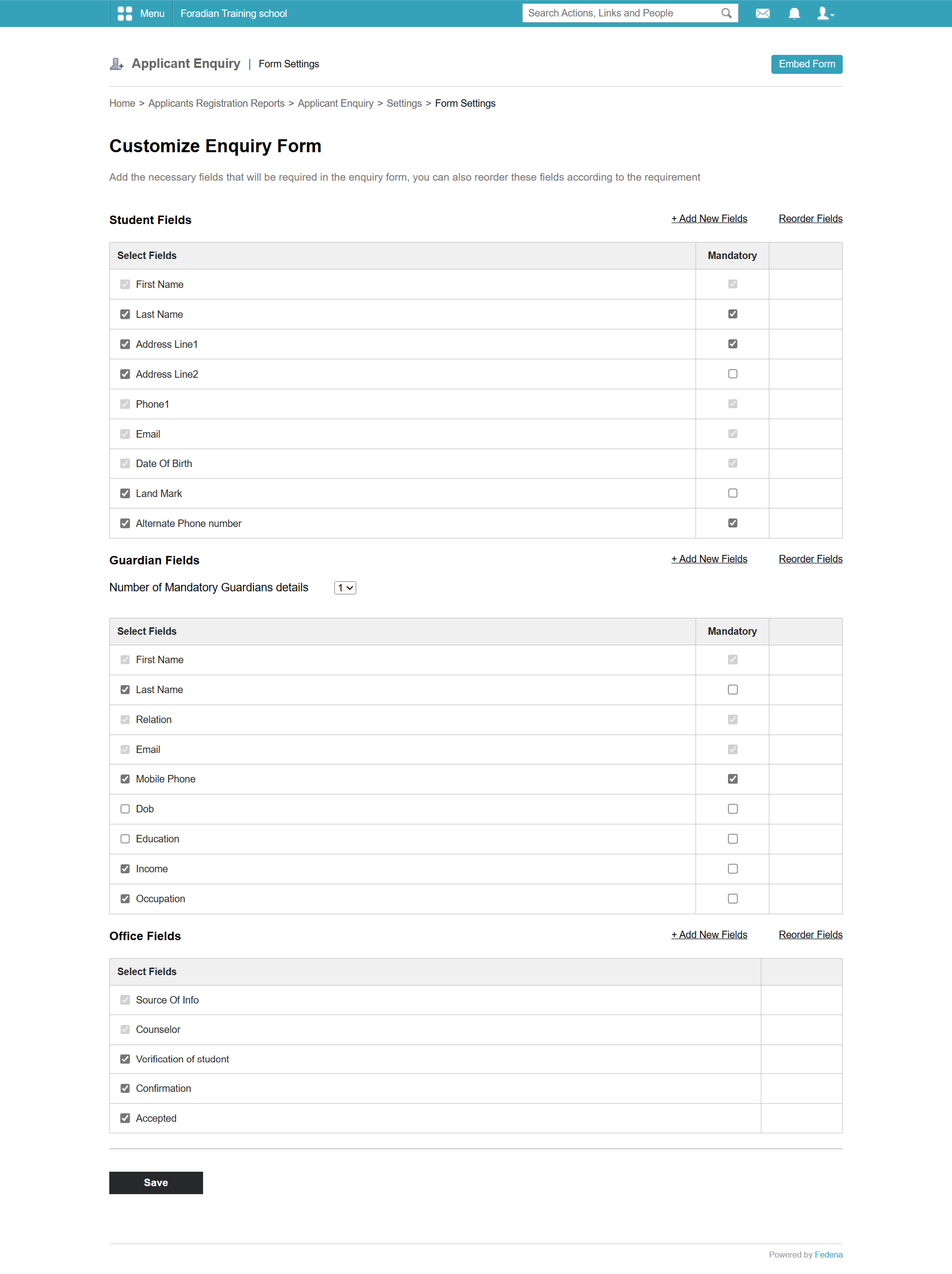
You can add new fields in three different sections available on this page that are: Student details, Guardian Details, and Office Fields.
Note: The office fields will not be available in the enquiry forms during submission by the enquirer. These fields can only be filled by the admin or an employee with special privileges.
Enquiry forms can be easily embedded in your institution website using the Embed form button at the top right corner of this page.
To add new fields, click on ‘Add New Field’
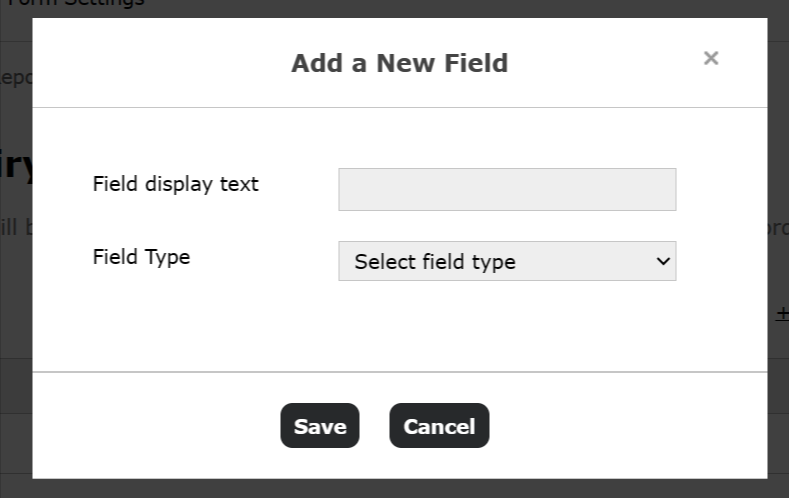
Enter the name of the field and select the type of field it should be. The following can be selected: Text field, Select box, Radio Button, Date, TextArea, Attachment.
Click on the Save button.
Note:
The following fields are set to mandatory by default (cannot be changed:
Student Fields: First name, Phone1, Email (Can be made optional using the Enquiry Notification settings), Date of Birth
Guardian Fields: First name, Relation, Email
Office Fields: Source of Info, Counselor
You can make it mandatory for the enquirers to fill in at least one Guardian details form using the dropdown available on this page in the guardian section.

Was this article helpful?
That’s Great!
Thank you for your feedback
Sorry! We couldn't be helpful
Thank you for your feedback
Feedback sent
We appreciate your effort and will try to fix the article