To integrate video conferencing into Fedena, the BigBlueButton (Collaborate) plugin must be activated in the Fedena application, and a separate BigBlueButton server must be installed and configured.
The integration involves two main components:
Fedena: Provides the Collaborate plugin and interface for creating and managing online meetings.
BigBlueButton Server: Hosts the actual video conferences and handles audio, video, screen sharing, presentations and meeting sessions.
For this user has to install Big Blue Button first (https://docs.bigbluebutton.org/). Once this is done.
For current BigBlueButton installations, use sudo bbb-conf --secret to retrieve the API URL and shared secret. The official documentation confirms this command.
Click on this below URL to know more about for generating the Salt Id -
BigBlueButton – Extracting and changing the shared secret
This will give a Salt ID. Now go to Fedena application. Go to Collaborate module (Under the More link). You have to login as Admin to do this operation. Refer the image below

On clicking the collaborate link, admin will get the settings page of BBB integration with Fedena. There will be a link Server at the top right corner, click on that

Click on servers and click on new server link. Give the salt id and the link where Big Blue Button is installed. Give a name for the new server integration. Refer the figure below
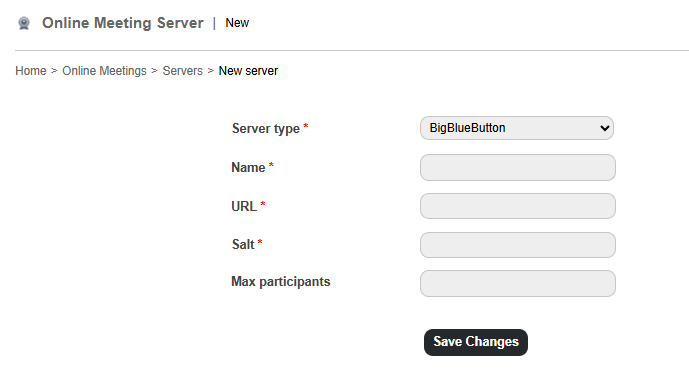
Saved BBB servers will be listed down in the Collaboration page.

Was this article helpful?
That’s Great!
Thank you for your feedback
Sorry! We couldn't be helpful
Thank you for your feedback
Feedback sent
We appreciate your effort and will try to fix the article