PART-1
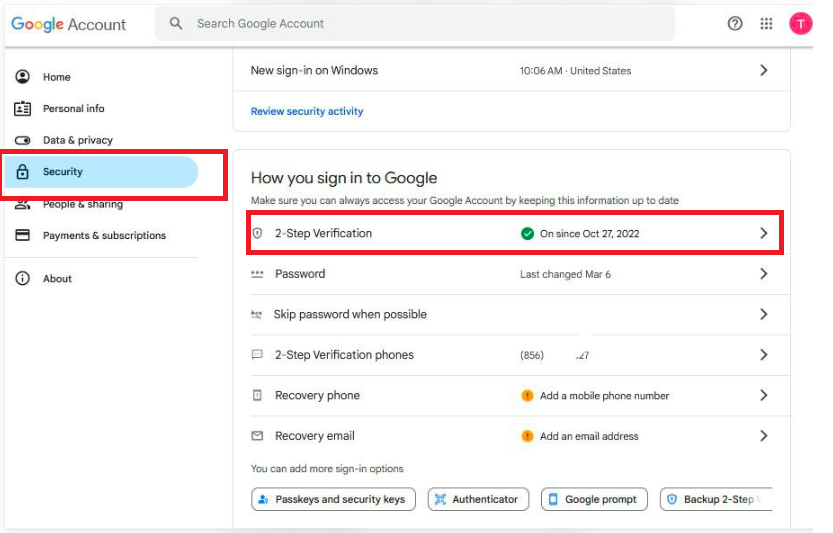
Step 1: Open Google Account Security
Open your browser.
Visit Google Account Security.
Log in using the Gmail account that you want to configure in Fedena.
Locate How you sign in to Google.
Click 2-Step Verification.
Step 2: Start the verification process
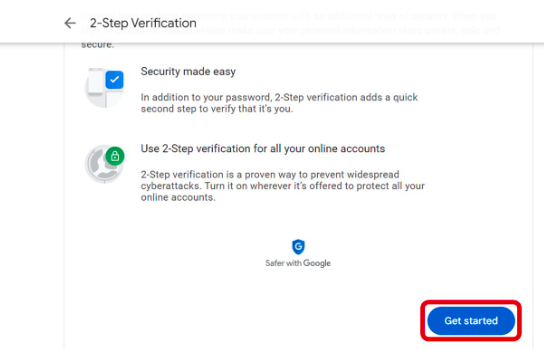
Click Get started.
Enter your Google account password if requested.
Google will ask you to select a verification method.
Follow the instructions displayed on the screen.
Step 3: Complete 2-Step Verification
You can select an available verification method:
Google Prompt on your mobile device.
Google Authenticator.
SMS verification code.
Security key or passkey.
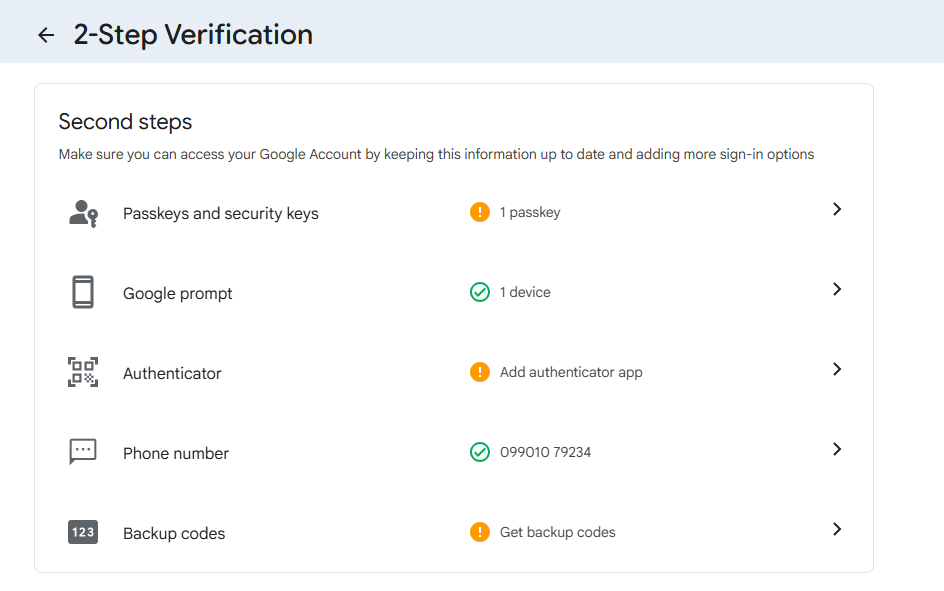
Complete the verification process.
Click Turn on to enable 2-Step Verification."Verification enabled Your Google account is now protected with Two-Step Verification".
Part 2
Generate an App Password for Third-Party Applications,Once 2-Step Verification is enabled, follow these instructions.
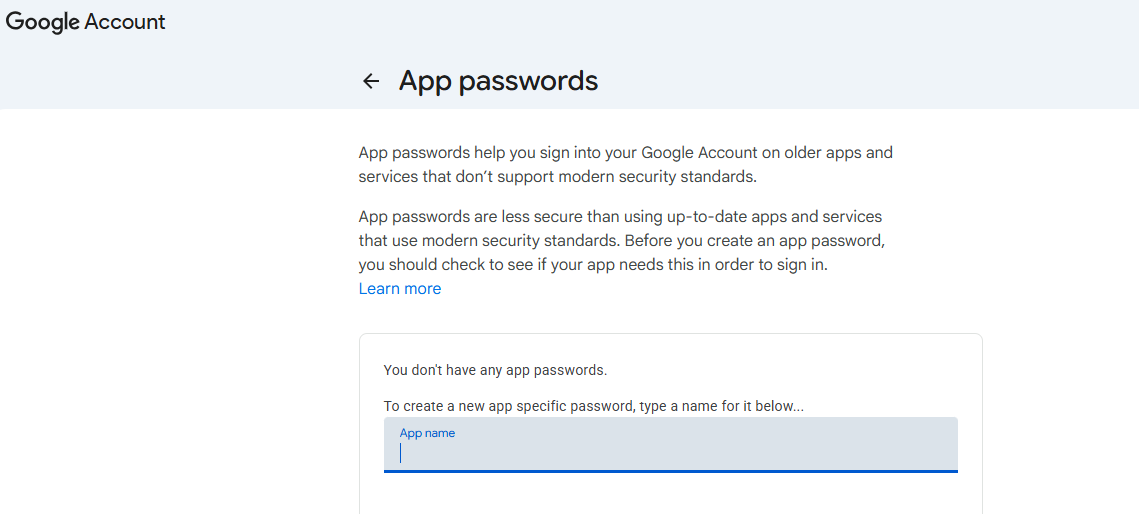
Step 1: Open the App Passwords page
1. Open the following link:
Sign in to your Google account if prompted.
You will be redirected to the App Passwords page.
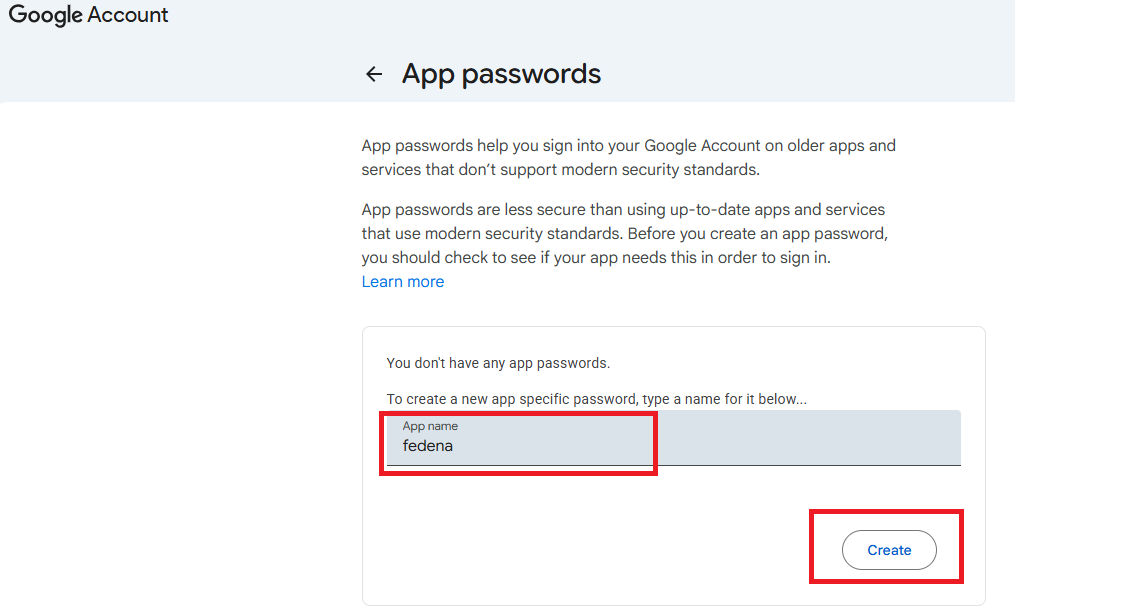
Step 2: Enter the application name
Enter a suitable name for the application.
For Fedena, enter:
Fedena
3. Click Create.
Step 3: Copy the generated App Password
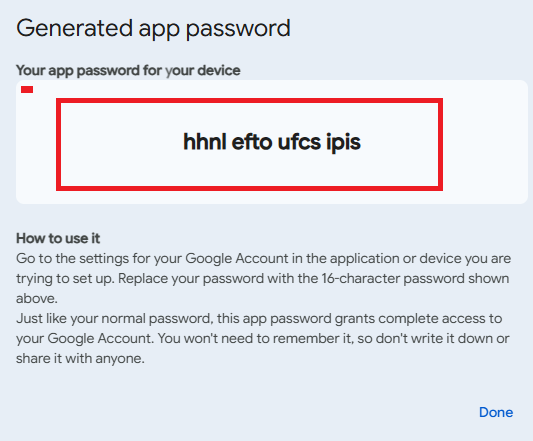
Google will generate a 16-character App Password.
Copy the password displayed on the screen.
Store it securely.
Click Done.
NOTE:
The App Password is displayed only once.
Never share it publicly or include it in support tickets.
Do not use the regular Gmail password in Fedena.
Generate a separate App Password for each application where appropriate.
Changing the Google account password revokes existing App Passwords.
Part 3
Configure the App Password in Fedena
After generating the App Password, configure the school's email settings in Fedena.
Use the following SMTP configuration:
Field
Description
Enable STARTTLS Auto
Set according to the email provider's requirements
Address
SMTP server address
Port
SMTP port number
Username
Email account username ( Email Id )
Password
app password from the email account
Authentication
Authentication method supported by the provider
Domain
Domain name, if required
From Address
Email address displayed as the sender
Was this article helpful?
That’s Great!
Thank you for your feedback
Sorry! We couldn't be helpful
Thank you for your feedback
Feedback sent
We appreciate your effort and will try to fix the article