You can also assign roll numbers even after students are admitted to a batch. When assigning student roll numbers, the system will assign a pre-set roll number to each student of the batch beginning from 1. The pre-set roll number can be edited if required. The number of digits in a pre-set roll number (excluding the prefix) is determined by the number of students in a batch. For example, if a batch contains 5 students, the pre-set roll number will begin from 01. If a batch contains 10 students, the pre-set roll number will begin from 001. Similarly, if a batch contains 100 students, the pre-set roll number will begin from 0001.
Follow the below steps to add roll number for students under a batch
- At the top of your dashboard, click the module access icon > Administration > Settings > Manage student roll numbers to open the Manage roll number page.
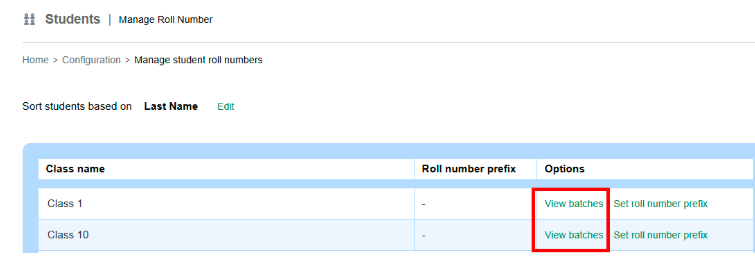
- Click View batches to view all batches in a course.
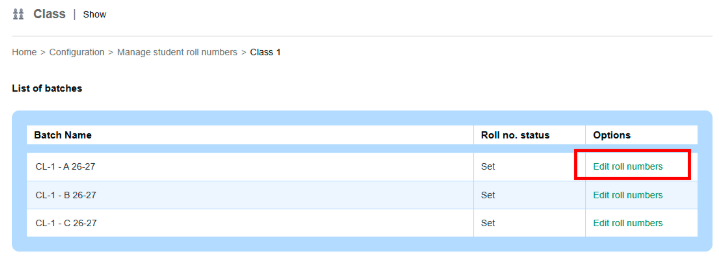
- Click Edit roll numbers beside a batch.
 The Edit roll numbers page is displayed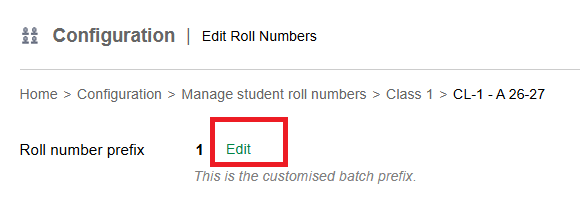
- You can reset the roll numbers to the default set at any time by clicking Reset all.

Was this article helpful?
That’s Great!
Thank you for your feedback
Sorry! We couldn't be helpful
Thank you for your feedback
Feedback sent
We appreciate your effort and will try to fix the article